We're here to help.
Questions about measurements? Need help with a feature? Report a bug? Our team responds within 24 hours.
Questions?
We have answers.
Size AI is an iPhone app that measures garments in 0.92 seconds using LiDAR and on-device AI. It captures up to 12 measurements per garment from more than 200 data points, scans labels for brand and fabric details, and creates professional product photos in a single tap.
1. Download Size AI from the App Store (free to start, no credit card required).
2. Sign in with Apple or Google.
3. Grant camera and photo library access.
4. Place your garment flat on a contrasting surface.
5. Tap the capture button. Measurements appear in 0.92 seconds.
6. Export images or copy measurements straight to your listings.
Full setup walkthrough lives in our capture guide.
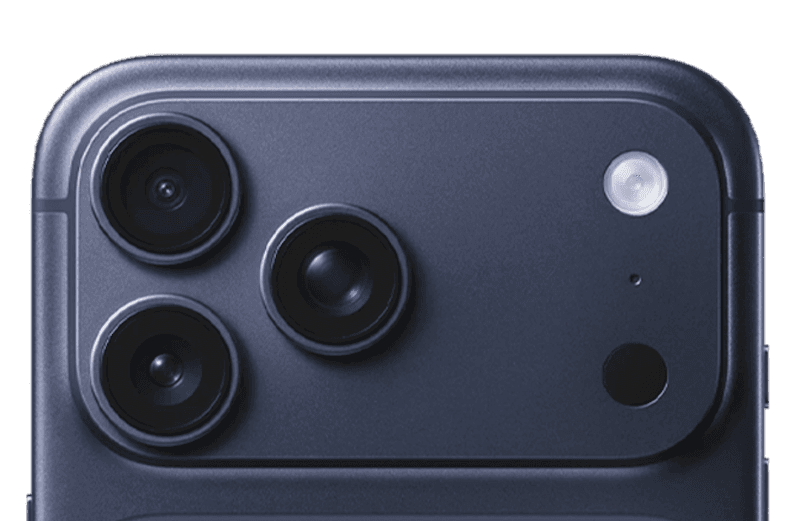
Best accuracy comes from LiDAR on iPhone 12 Pro and later Pro models and iPad Pro 2020 and later.
Supported iPhones:
- iPhone 12 Pro / 12 Pro Max
- iPhone 13 Pro / 13 Pro Max
- iPhone 14 Pro / 14 Pro Max
- iPhone 15 Pro / 15 Pro Max
- iPhone 16 Pro / 16 Pro Max
- iPhone 17 Pro / 17 Pro Max
Supported iPads:
- iPad Pro 11" (2020 and later)
- iPad Pro 12.9" (2020 and later)
Size AI also works without LiDAR on iPhone 11 and later, including the non-Pro iPhones, where typical accuracy is around ~9 mm (3⁄8").
Size AI is free to start. Every account gets 10 scans and 3 Photo Studio photos each month, with access to every feature:
- Measurements
- Label scanning
- Photo Studio (Ghost Mannequin and Model Shots)
- AI Descriptions for 9 marketplaces
- Export and sharing tools
No credit card required. Paid plans start at $9.99/month and raise the monthly limits. See all plans on our pricing page. Current plans and limits are shown in the App Store, and subscriptions are managed through Apple. Need more than 500 scans a month? Request a custom plan.
Measurement runs on-device: your photos never leave your phone for the measurement step. Label scanning reads the text on your phone, then needs a connection to turn it into brand, size and fabric fields. Captured garments save to your library.
Cloud-side features like AI Photo Studio and AI Descriptions need an internet connection to generate output, since the image and text generation happens server-side. The original photo and measurements still live on your device.
1. Place the garment. Lay it flat on a contrasting surface with even lighting.
2. Capture the photo. Tap once. LiDAR scans the depth map, and the on-device AI lifts more than 200 data points off the garment.
3. Review the measurements. Chest, waist, length, sleeves, and category-specific points appear on screen automatically.
4. Export or edit. Copy measurements to your clipboard, or download the cleaned-up product image.
Total time: 0.92 seconds from capture to measurements.
Size AI captures up to 12 measurements per garment, drawn from more than 200 data points:
- Tops: chest, waist, length, shoulder, sleeve
- Bottoms: waist, hips, inseam, rise, leg opening
- Dresses: chest, waist, hip, length
- Outerwear: chest, length, shoulder, sleeve
Coverage spans 90+ garment types across 9 categories. See the full list in our supported garments guide.
In ideal conditions, with the garment laid flat, even lighting, and the camera at a 90-degree angle:
- ~5 mm (1⁄5") typical accuracy with LiDAR on core measurements
- ~9 mm (3⁄8") typical without LiDAR (iPhone 11 and later)
- 1M+ measurements captured to date
Real-world impact: fashion sellers using Size AI cut return rates from the industry average of 24.4% down to 5.5%.
Yes, though you rarely need to: Size AI places every point automatically. In the rare case a point sits off the edge, move it in the Precision Editor and the measurement recalculates on the device. On a saved garment, you can also tap “Edit” in the Measurements section to change a value.
Saved garments appear on the Home tab. Every garment you save with “Save to Library” shows there with its measurements, label data, and any Photo Studio images you generated for it.
From Home, tap any garment to reopen it, generate new Photo Studio images, or save the measurement image with One-Tap Export.
AI Descriptions generate in 20 languages, set from the app, so you can list locally and sell globally without machine-translating every description by hand.
The Label Scanner is separate: it reads labels in any language and returns the extracted fields in English, with no setting change needed.
The website is English only.
Measurements:
- Copy to clipboard (plain text)
- Direct paste into marketplace listing drafts
Images:
- JPEG (original quality)
- PNG (transparent backgrounds)
- Measurement overlays
- Photo Studio output (Ghost Mannequin and Model Shots)
One-Tap Export saves any of these to your camera roll, ready to upload to eBay, Poshmark, Mercari, Grailed, Depop, Etsy, Shopify, Amazon, or your own store. Full coverage in our workflow tools guide.
On the Results screen, tap “Tag” or “Scan Label Now”, photograph each label and tag (up to 5), then tap the checkmark:
1. Text read on your iPhone. The phone reads the text on each label. Sorting it into fields happens online, so scanning needs an internet connection.
2. Data extraction. Brand, multi-format sizing, fabric composition, care symbols, and 5-level stretch analysis (Minimal, Light, Medium, High, Maximum).
3. Manufacturing details. Country of origin, season, RN numbers, and style or item numbers where present.
4. 15+ data points per scan, combined across every label you photograph. Labels in any language come back in English.
The fields fill in the “Label Information” section a few moments later. To fix one, tap “Edit Label”, make the change and tap “Save”. Full breakdown in our label scanner guide.
Model Shots generate lifestyle images of an AI model wearing your garment, created from a single flat-lay photo.
- 10 model combinations: 5 “Age” options (Baby 0–2, Child 3–12, Teen 13–17, Adult 18–59, 60+) with 2 “Gender” options (Male, Female).
- Demographic-matched models: set Age and Gender to match the garment, so a kid’s tee goes on a Child model and a men’s blazer on a Male adult.
- 15 to 30 seconds per image. Each tap on “Generate” makes one image; tap the regenerate button for more, 3 to 5 variations per garment. Needs an internet connection.
- Export ready. Tap “Save” to put the image in Photos, ready to upload to any marketplace listing.
No photoshoot, no models, no editing software required. Full guide: Photo Studio.
TrueShape™ is automatic background removal for the photo you just took. The captured image runs through an on-device edge-detection model that uses the same depth map as the measurement engine. Tap “TrueShape” on the Results screen to see it.
- Clean backgrounds. The actual garment cutout, with the floor and the rest of the room subtracted out.
- True-to-life proportions. The cloth in the image is the cloth you measured, with color, drape, and edge detail preserved.
- 1 to 2 seconds automatic generation alongside every measurement.
- Marketplace ready. Open the saved garment, choose “TrueShape” and tap “Save Image”, then drop it into any listing as the lead photo.
Use TrueShape for the listing thumbnail and Photo Studio for the supporting lifestyle shots. Full details: TrueShape guide.
Measurement: yes. It runs on-device, so you can capture in a thrift store, a warehouse, or anywhere with no signal.
Cloud features: label scanning, AI Photo Studio and AI Descriptions need an internet connection because the field extraction and the image and text generation happen server-side.
Captured garments save to your library, with or without a connection.
Setup:
- Flat surface with contrasting color (dark garment on light surface, or vice versa)
- Even lighting, no harsh shadows or side-light
- Garment fully visible, no folded edges or overlapping fabric
- iPhone 12 Pro or newer for LiDAR accuracy
Capture:
- Hold the iPhone directly above the garment so it fits fully in the frame
- Keep the camera parallel to the surface (90 degrees)
- Tap once. The app handles the rest in 0.92 seconds.
Pro tip: shoot tall items like jeans and shirts in portrait. For larger items (jackets, coats, dresses), tap the rotate button to switch to horizontal mode. Full setup walkthrough lives in our capture guide.
Yes. Size AI is used by:
- Individual resellers on eBay, Poshmark, Mercari, Grailed, and Depop
- Boutique shops running small to mid-sized online stores
- High-volume fashion sellers processing 1,000 to 10,000+ items monthly
- Fashion brands and marketplaces integrating via SDK and API
For business pricing, team features, or API access, contact us.
Today: Copy Measurements copies the full set as text and One-Tap Export saves the measurement image, ready to paste and upload into a listing on eBay, Poshmark, Mercari, Grailed, Depop, Etsy, Shopify, or Amazon.
Coming soon: deeper bidirectional integrations with the major marketplaces, Shopify, and WooCommerce. Want early access? Contact us.
Today the iOS app is designed for individual use, with each device tied to its own subscription. For team features (shared measurements, brand consistency, bulk processing across operators), contact us to discuss business plans.
Yes. Size AI offers a REST API and a native iOS SDK (Swift) for developers and marketplace integrations. Common use cases:
- Bulk measurement processing
- Marketplace integration
- Custom workflow automation
- White-label solutions for fashion brands
Includes enterprise SLA, volume pricing, and dedicated integration support. Contact us for access and pricing.
Subscriptions are managed through Apple. To cancel:
1. Open Settings on your iPhone
2. Tap your name (Apple ID)
3. Tap Subscriptions
4. Select Size AI
5. Tap Cancel Subscription
You’ll continue to have access until the end of your current billing period.
You can change your plan in two ways.
Option 1: Inside the Size AI app
1. Open Size AI
2. Go to Settings
3. Tap your plan under “Your Plan”
4. Select your new plan
Option 2: Through Apple Subscriptions
1. Open Settings on your iPhone
2. Tap your name (Apple ID)
3. Tap Subscriptions
4. Select Size AI
5. Choose a different plan
What to expect:
- Plan changes are managed by Apple.
- Upgrades may take effect immediately.
- Downgrades take effect at the next billing cycle.
- Your current plan stays active until the change applies.
All payments and refunds are handled directly by Apple.
To request a refund:
1. Go to: https://reportaproblem.apple.com
2. Sign in with your Apple ID
3. Find your Size AI purchase
4. Select Request a refund
5. Choose a reason (for example: “Accidental purchase”)
Apple typically processes refunds within 1–3 days.
Subscriptions renew automatically at the end of each billing period unless they’re canceled first.
To avoid a renewal charge, cancel the subscription at least 24 hours before the renewal date. Cancellation steps are in the “How do I cancel my subscription?” entry above.
Usually one of three things:
- You’re signed into a different Apple ID than the one used to subscribe.
- The subscription was never activated (the App Store purchase didn’t complete).
- The subscription already expired or was canceled.
Check every Apple ID you may have used. If the subscription is still missing, contact us with your Apple receipt and we’ll help track it down.
Size AI works best on devices with a LiDAR sensor (iPhone 12 Pro and later Pro models, iPad Pro 2020 and later), and also works without LiDAR on iPhone 11 and later using the camera. If you see the “LiDAR Required” screen, it usually means one of two things:
- Your device is older than iPhone 11 (which is the minimum supported model).
- The camera or LiDAR sensor isn’t being detected properly (rare, but it happens).
This isn’t a bug in most cases. The app blocks unsupported devices to ensure measurement accuracy. The full list of supported devices is in the “Do I need any special equipment?” entry under Getting Started.
Use Apple’s pre-installed Measure app:
1. Open the Measure app.
2. Point your camera at an object.
3. Try measuring a distance.
If the Measure app reads distance smoothly, your LiDAR sensor is working. If it doesn’t, the sensor itself may have an issue, and Size AI can’t take LiDAR measurements until that’s resolved.
Try these in order:
1. Test your LiDAR sensor. Use the Measure app (see above) to confirm the sensor is working.
2. Reinstall the app.
- Delete Size AI completely from your device.
- Update to the latest iOS version.
- Restart the device.
- Reinstall Size AI from the App Store.
If the issue persists, contact support and we’ll help debug it.
Most arrows that land off trace back to the setup. For best results:
- Lay the garment flat. No bunching, twisting, or overlapping fabric.
- Make sure sleeves and side seams are fully visible (matters most for pit-to-pit).
- Smooth out major wrinkles: they distort dimensions.
- Use even lighting with no harsh shadows.
- Keep the entire garment in frame, with the camera at 90 degrees.
Size AI places every point automatically. In the rare case one sits off the edge, move it in the Precision Editor and the measurement recalculates on the device. Full setup walkthrough lives in our capture guide.
Size AI needs iPhone 11 or later. It measures with LiDAR on iPhone 12 Pro and later Pro models and iPad Pro (2020 and later), and without LiDAR on other iPhones from iPhone 11.
If you’re unsure, check:
- Your device model.
- LiDAR functionality using the Measure app.
If both check out and the app still misbehaves, contact support.
