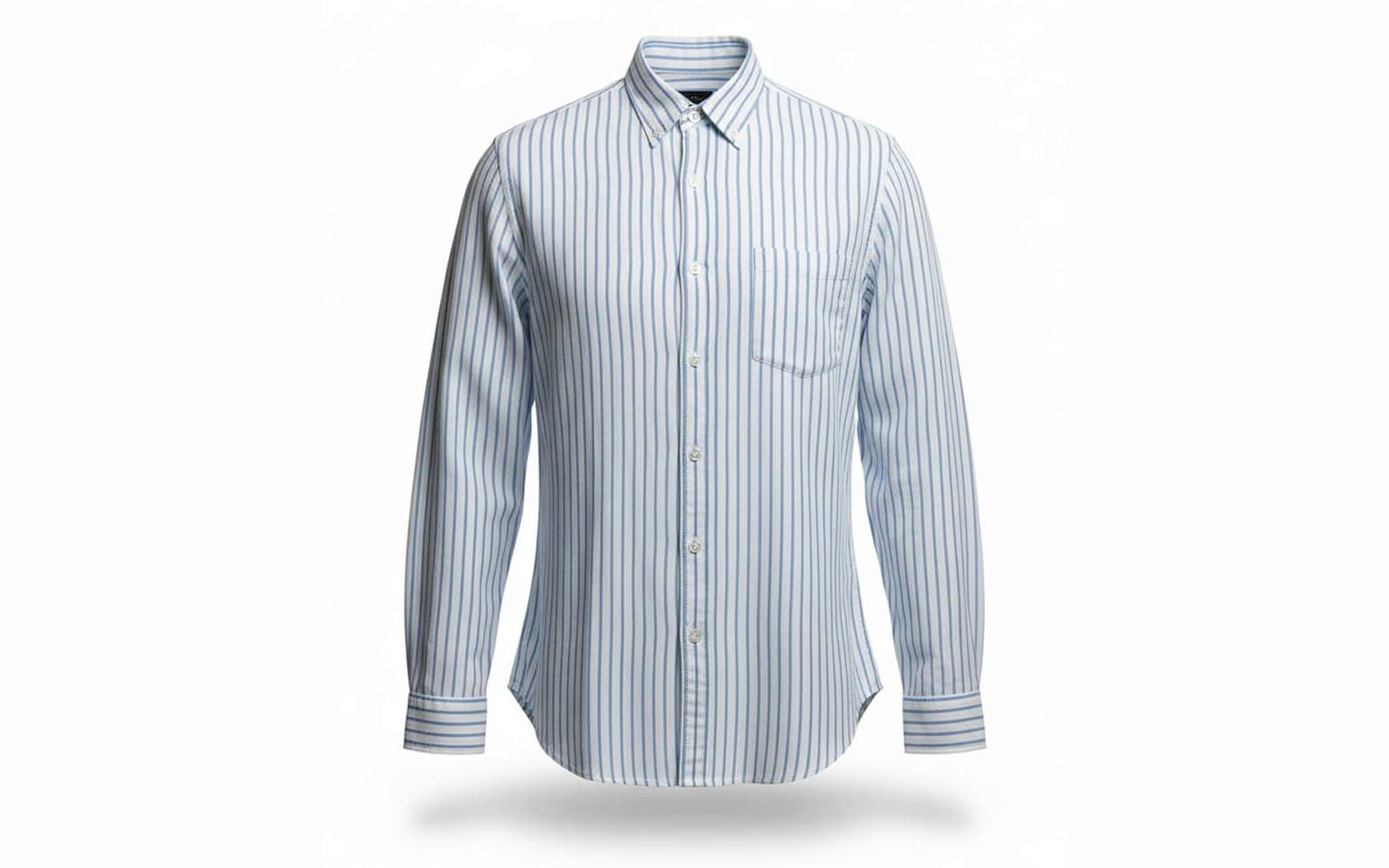
Size AI's AI Photo Studio turns one flat-lay photo into studio-quality listing images in two modes, Ghost Mannequin product shots and AI Model Shots, generating 3 to 5 variations per garment in 15 to 30 seconds each.
The ghost mannequin look normally takes a mannequin, studio lighting and an editing pass to remove the form from every photo. That is a lot of setup for a single listing.
Size AI's Photo Studio addresses this gap. Major retailers rely on ghost mannequin presentations on every catalog page, yet most resellers lack the resources for studios or professional photographers. Photo Studio transforms a flat-lay photo into studio-quality images in two modes, generating three to five variations per garment in just 15 to 30 seconds.
What follows is what each mode does, when to use which, and the disclosure rules that come with AI-generated listing photos.
What AI Photo Studio actually does
Size AI's Photo Studio uses flat-lay measurement photos to deliver studio-quality images in two modes. The Ghost Mannequin mode creates clean, invisible-mannequin product shots that highlight garment shape, drape, and construction. Meanwhile, Model Shots generate lifestyle images with AI models styled for social media and marketplace listings.
For each garment, the app provides 3 to 5 variations per mode, with each image taking 15 to 30 seconds to produce. A maximum of 10 images per garment can be stored, with older images rotating out as new ones are created.
Photo Studio output is visual presentation for the listing. It is not a substitute for actual photographs of the garment. The compliance section below covers the disclosure rules in detail.
Ghost Mannequin vs Model Shots
The two modes do different things. Picking the right one for a given listing matters.
Ghost Mannequin is the invisible-mannequin product shot, with three angle options: Front, Three-Quarter, and Side. It's the standard format major retailers use for catalog imagery. Clean, distraction-free, reads as professional. Use it for catalog tiles, marketplace product photos, and product detail pages.
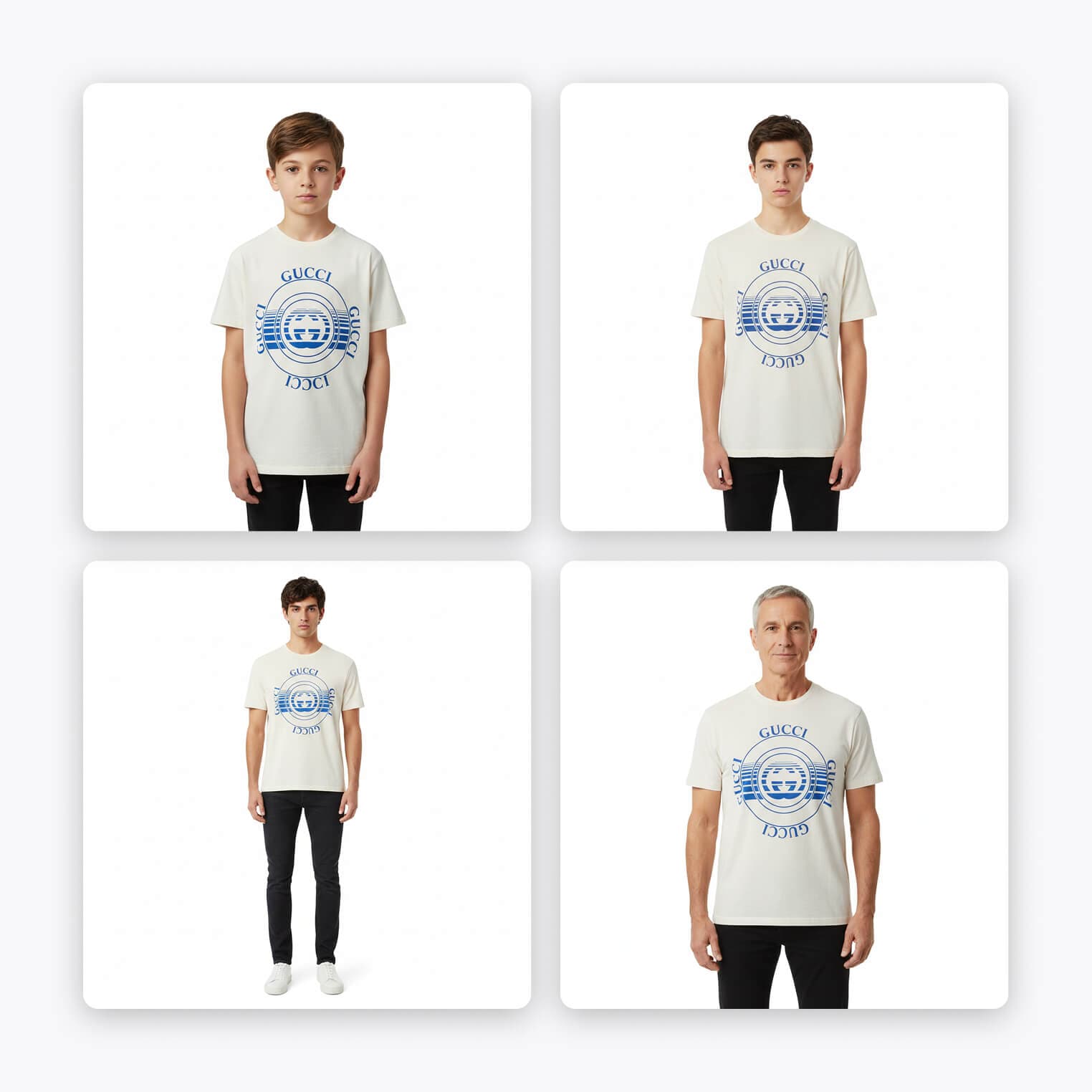
Model Shots generate lifestyle imagery of an AI model wearing the garment. Ten model combinations are available: 5 age ranges (Baby 0–2, Child 3–12, Teen 13–17, Adult 18–59, Senior 60+) crossed with 2 gender options. The model is matched to the garment automatically. A kid's tee gets a child model. A men's blazer gets a male adult model. Use Model Shots for social posts, lifestyle imagery, and supporting content next to your real product photos.
How to generate a Photo Studio image
The flow lives in the Results screen after a measurement capture.
- 1
Open the AI Studio tab
It's in the Results screen. Both modes appear as options.
- 2
Pick Ghost Mannequin or Model Shot
Each opens its own configuration step.
- 3
Configure the mode
Ghost Mannequin asks for an angle (Front, Three-Quarter, Side). Model Shot asks for an age range and gender.
- 4
Tap Generate
The first variation lands in 15 to 30 seconds. Two to four more variations queue up automatically.
- 5
Review and save
Swipe through the variations, save the ones you want, regenerate the ones you don't.
Up to 10 saved images per garment. Once the gallery hits the cap, generating a new variation rotates the oldest one out.
Tips that actually move the needle
- Same flat-lay rules apply. Natural lighting, clean background, full garment in frame, fabric smoothed out. The cleaner the source flat-lay, the better the Photo Studio output.
- Use Ghost Mannequin for the listing thumbnail. Buyers expect a clean product shot in the grid. Model Shots work better as the second or third photo, supporting the listing.
- Pair AI photos with real ones. Photo Studio output supports the listing. It does not replace an actual photograph of the garment. Always include the TrueShape or original photo as the lead listing image where the buyer is judging condition or color accuracy.
- Match the model to the garment. Model Shots default to a demographic match automatically. The manual override is useful for crossover sizing (an oversized adult tee styled on a teen model, for example).
Limitations and compliance
AI Photo Studio images are AI-generated visual enhancements. They are not accurate representations of how a garment will fit a real person.
- Do not use for size guidance or fit advertising
- Colors and details may vary from the original garment
- Always pair with actual product photos
- Disclose AI-generated content in your listings
Recommended disclosure: "AI-generated product photos for presentation purposes only."
The disclosures above are not optional. Most marketplaces have rules around AI-generated imagery. Some are explicit, some are implicit, all are tightening. Disclosing up front avoids the moderation issue and signals seller credibility to the buyer.