Size AI's capture measures a garment in 0.92 seconds, landing up to 12 measurements per garment at ~5 mm (1⁄5") typical accuracy with LiDAR, no tape required. A single capture reads more than 200 structured data points off the cloth, all on-device.
A tape measure once turned a vintage Levi's 501 into a six-minute exercise for our team. The waist read 32, then 33, then 32 again. The inseam missed by half an inch on every pass. By the third measurement, we'd handled the fabric enough that it had visibly stretched.
That's why the iPhone shutter on Size AI fires once, registers a depth map, runs an edge-detection model, and lands up to 12 measurements in 0.92 seconds. No tape. No second pass. Almost no contact with the cloth.
What follows is the capture flow we ship today, why it works, and the handful of mistakes we still see most often.
What capture actually does
Set a garment flat on a contrasting surface and the LiDAR sensor on your iPhone gets a clean depth read. Size AI projects invisible infrared dots across the fabric and times their bounce-back to build a millimeter-resolution depth map. An on-device edge-detection model then walks that depth map looking for the geometry that matters: shoulder seams, hem lines, collar arcs, sleeve cuffs, waistbands.
A single capture lifts more than 200 structured data points off the garment. From those, the app surfaces up to 12 measurements per garment. Tank tops get fewer. Trousers get the full set: waist and front rise, plus thigh, knee, inseam, outseam and hem on each leg.
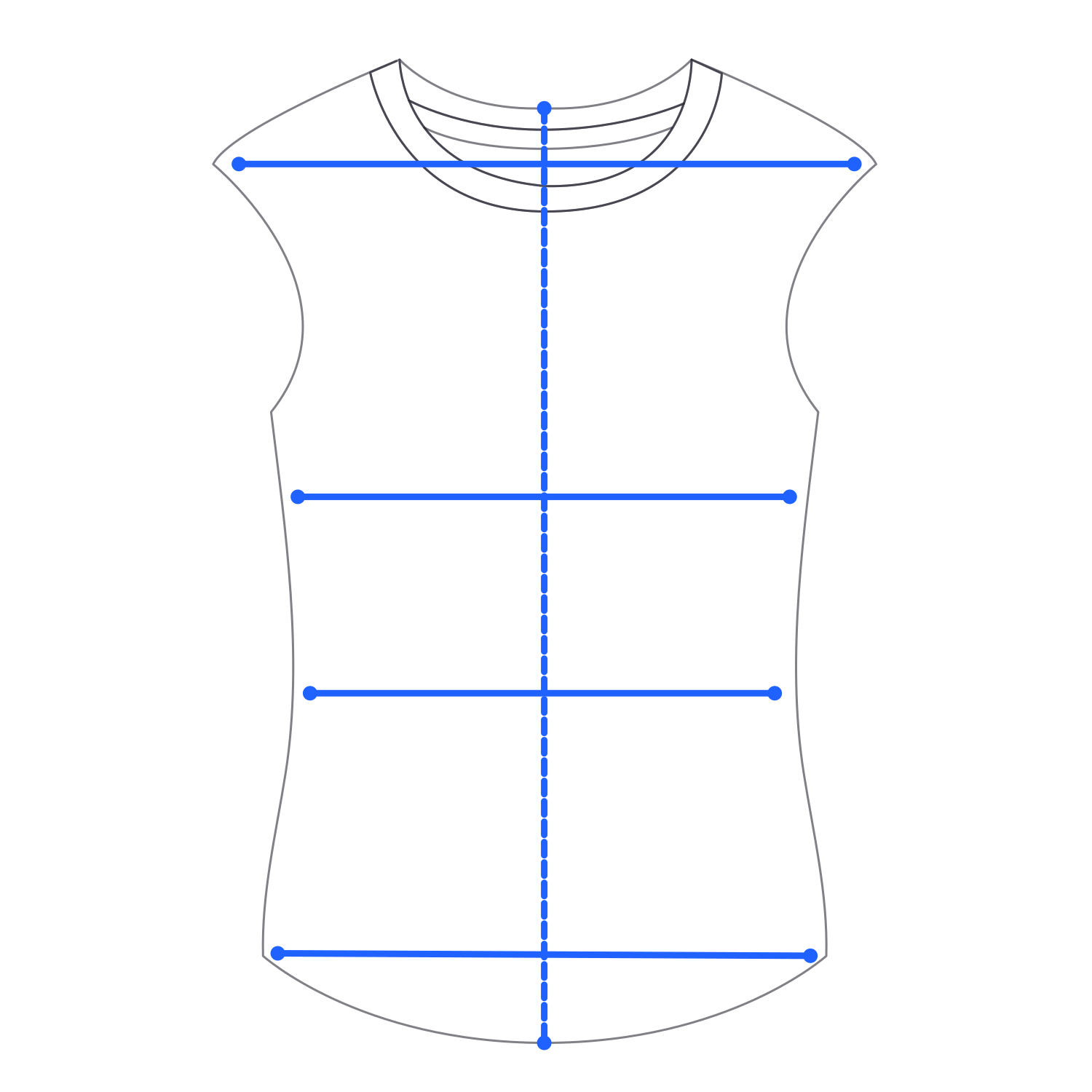
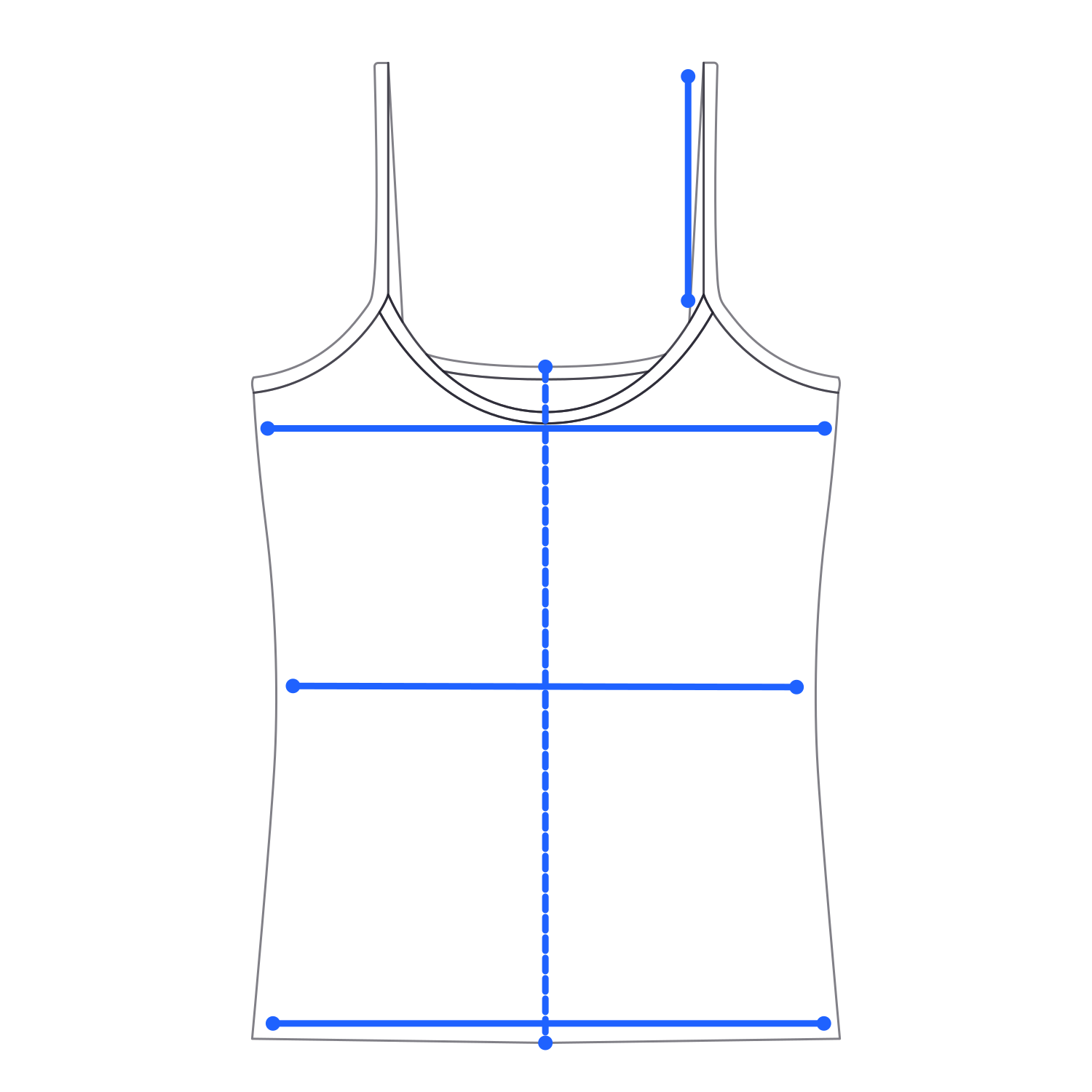
Vests, tanks & camisoles
Tank tops, vests, suit vests, camisoles, strap tops
- Chest width
- Body length
- Waist width
- Hem width
- Shoulder width
- Strap length
Vests: shoulder width. Camisoles: strap length.
5 measurements each
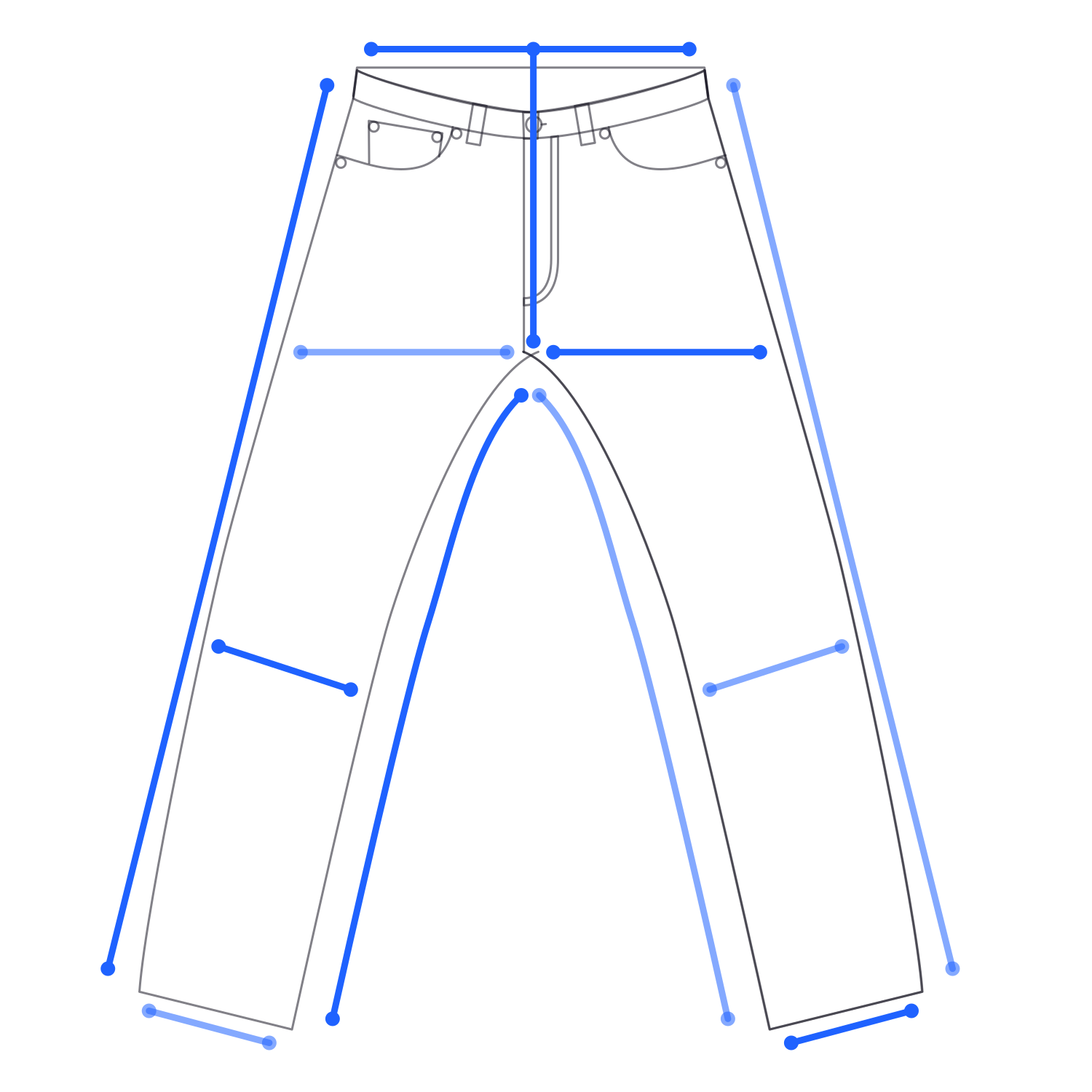
Trousers & jeans
Jeans, chinos, tailored trousers, joggers, wide-leg, cargo
- Waist width
- Front rise
- Thigh width L+R
- Inseam L+R
- Outseam L+R
- Knee width L+R
- Leg opening L+R
12 measurements
The whole pipeline runs on the device. Your photos never leave your phone for the measurement step, which is why capture works in a thrift-store basement with no signal. Shutter tap to a screen full of measurement arrows: 0.92 seconds.
What you need before you tap shutter
Best accuracy comes from a Pro-line iPhone with LiDAR. That's iPhone 12 Pro or 12 Pro Max all the way up through iPhone 17 Pro and 17 Pro Max. iPad Pro 11" and 12.9" from 2020 onward also work. The non-Pro iPhones (regular 12, 13, 14, 15, 16, 17) have no LiDAR sensor, so they run the non-LiDAR path instead, where typical accuracy sits around ~9 mm (3⁄8").
Beyond the device:
- A flat surface big enough to hold the garment without folding
- Even lighting. Daylight is best. Overhead lamps work. Side-light from a single window does not.
- A background that contrasts with the garment. Light fabric on dark surface, or vice versa.
- For oversized pieces, room to back up to roughly 1.4 meters (4.5 feet)
Without contrast, the edge-detection model struggles. A light-grey hoodie on a light-grey hardwood floor is the weakest setup we've seen. The same hoodie on a black sheet reads cleanly.
How to capture a garment
This is where most resellers think they already have the process down. They don't. The same five mistakes show up across thousands of support tickets.
- 1
Lay the garment flat
Floor, table, lay-flat board, choose the largest option. Smooth the fabric so nothing is bunched, twisted, or overlapping. For pants, keep the inseam dead straight. For jackets, button or zip them closed before they go down. An open jacket captures wider than the jacket actually is, every time.
- 2
Turn on Precision Guidance
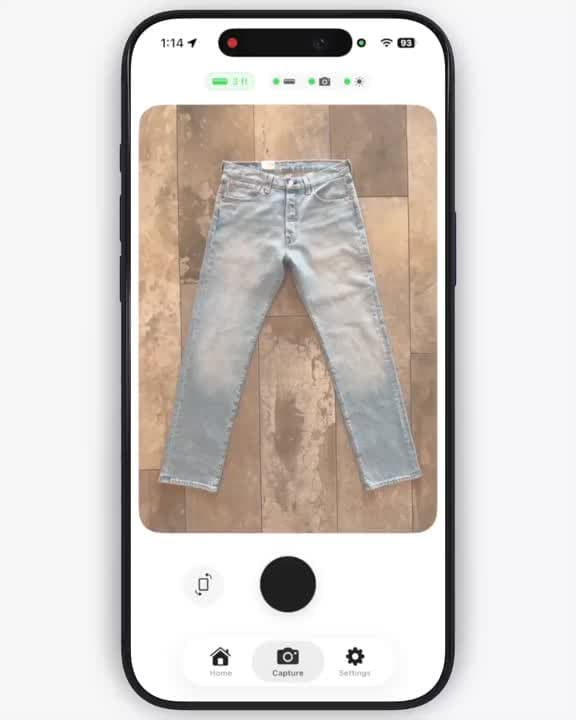
Turn it on in the camera view. The app shows real-time angle indicators that change color as you tilt. Hold the phone directly above the garment until everything reads green. Green means 90 degrees, the angle the LiDAR sensor needs for a clean depth read. Anything less and the depth values distort.
- 3
Smooth out major wrinkles
Small fabric texture is fine. Major folds and creases shift measurements by 0.8–1.2 in (2–3 cm), enough to push a buyer into the wrong size and trigger a return. Heavy denim and canvas benefit from a quick steam. Lightweight knits and jersey usually smooth by hand.
- 4
Tap the shutter
Capture finishes in 0.92 seconds. The measurement arrows appear on screen automatically.
- 5
Verify the arrows
Check where each one lands. If the chest arrow sits on a wrinkle instead of the seam, the measurement is wrong. Retake the photo, or open the Precision Editor and drag the keypoint into place.
End to end, the flow takes 30 to 60 seconds per garment once it becomes familiar. The first day feels slow. By the second week, it's faster than any tape measure you've ever used.
Tips that actually move the needle
The advice we give most often, in roughly the order it matters:
- Distance is everything. Stay 3–4.5 ft (about 0.9–1.4 m) from the garment. The app shows a distance indicator on the right side of the viewfinder. Green means ideal. Orange means adjust. Outside that range, the LiDAR data starts to degrade.
- Stand straight up, not at an angle. Shooting on the floor? Stand and shoot straight down. Don't kneel and angle in. Once the phone moves off 90 degrees, the depth read distorts and the measurements drift.
- Use a clean, solid background. Wood, poster board, a single-color sheet. Skip busy patterns. Edge detection on a polka-dot bedspread is the kind of thing that ruins your afternoon.
- For oversized garments, step back. If a coat doesn't fit in the frame at 1.4 meters, walk back farther. The app adjusts measurements based on the actual capture distance, so backing up doesn't hurt accuracy. Cropping the frame does.
- Retake before you edit. Two or more arrows misplaced? A fresh capture is faster than dragging keypoints by hand. Save the Precision Editor for fine-tuning a single arrow that's a millimeter off.
The mistakes we still see
Across everything our users capture, the same handful of issues drive most of our support tickets. The garment isn't quite flat. The camera is six inches off 90 degrees. The background is too close in tone to the fabric. None of them are subtle. They're all obvious in the verification screen if you bother to look. They all go away the moment the setup is fixed.
That's the whole pitch on capture. The technology is real, the math is real, and a reseller can shoot a hundred garments in an afternoon once the fundamentals are in place.